CLOUD PRINT: Print Directly from Odoo
Directly Print Reports & Shipping Labels
— Instantly. Silently. Anywhere.
Send reports and shipping labels to direct print instantly. No downloads. No additional hardware. Just smooth, automated printing.
Highlights:
Supports Odoo versions 17 to 19
High printer compatibility
Zero hardware dependency

Tired of PDF Previews and Print Dialogs?
Manual print confirmation
Time wasted per transaction
Warehouse bottlenecks
Browser extension failures
Meet CloudPrint by TheERPBot
A powerful silent printing engine built for Odoo. Eliminate manual steps, automate routing, and print anywhere — instantly.
Silent Direct Printing
Print Without Popups. Without Dialogs. Without Delays.
Automatic Printer Discovery
Zero Configuration. Instant Printer Sync.
Intelligent Print Rules
Smart Routing for Smarter Operations.
Remote & Multi-Location Printing
Print Across Networks. No VPN Required.

Key Benefits
Zero Click Printing
No Browser Extensions
Works with Odoo.sh
Secure HTTPS
Multi-location Ready
User-based Routing
How It Works?
Our process in FIVE easy steps
1
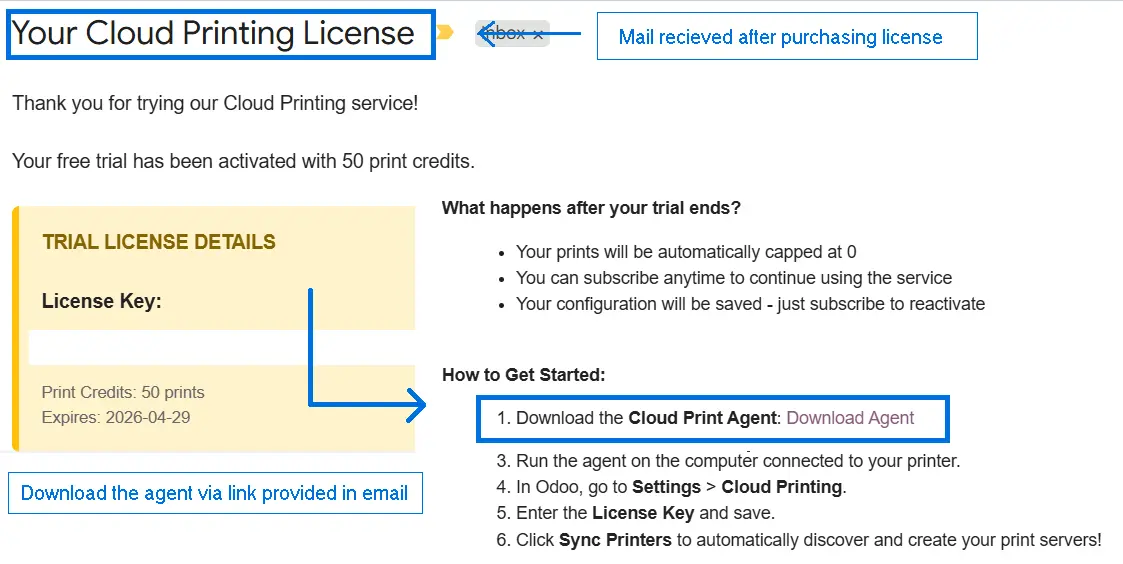
Install Agent
Download and install Windows service.
2
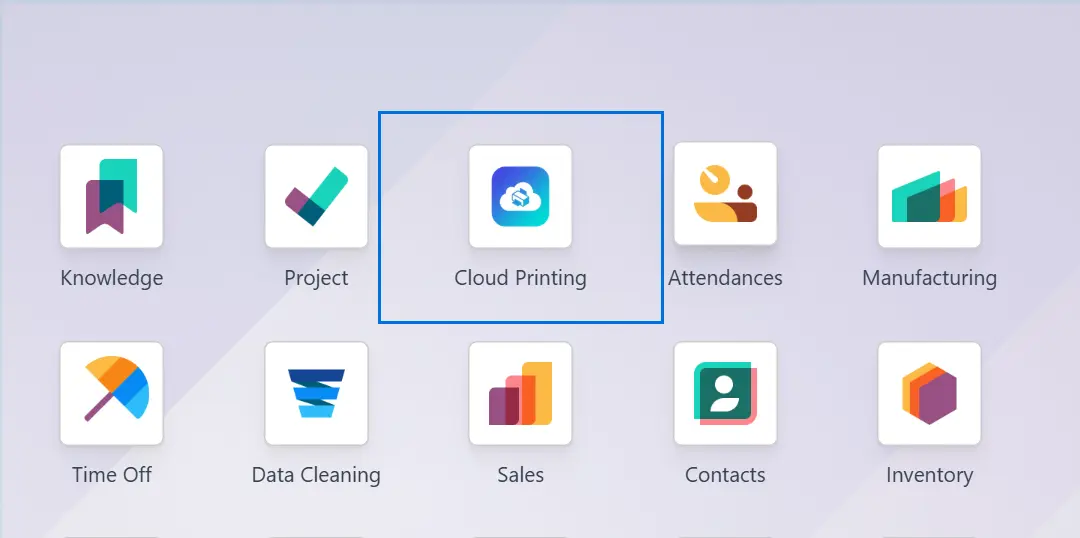
Install App in Odoo
Install CloudPrint App in Odoo
3
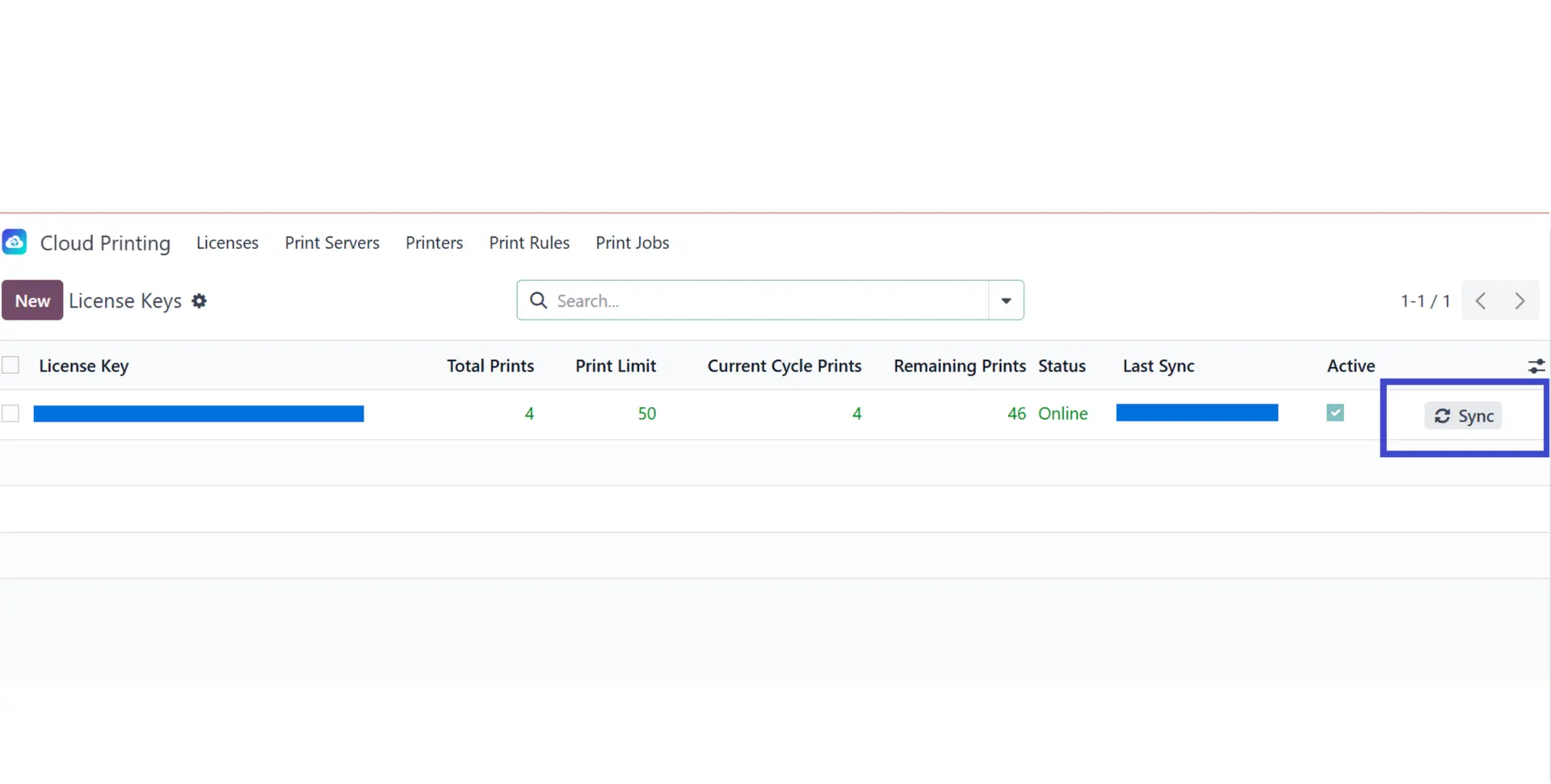
Sync Printer
Agent scans and sends printer list to Odoo.
4
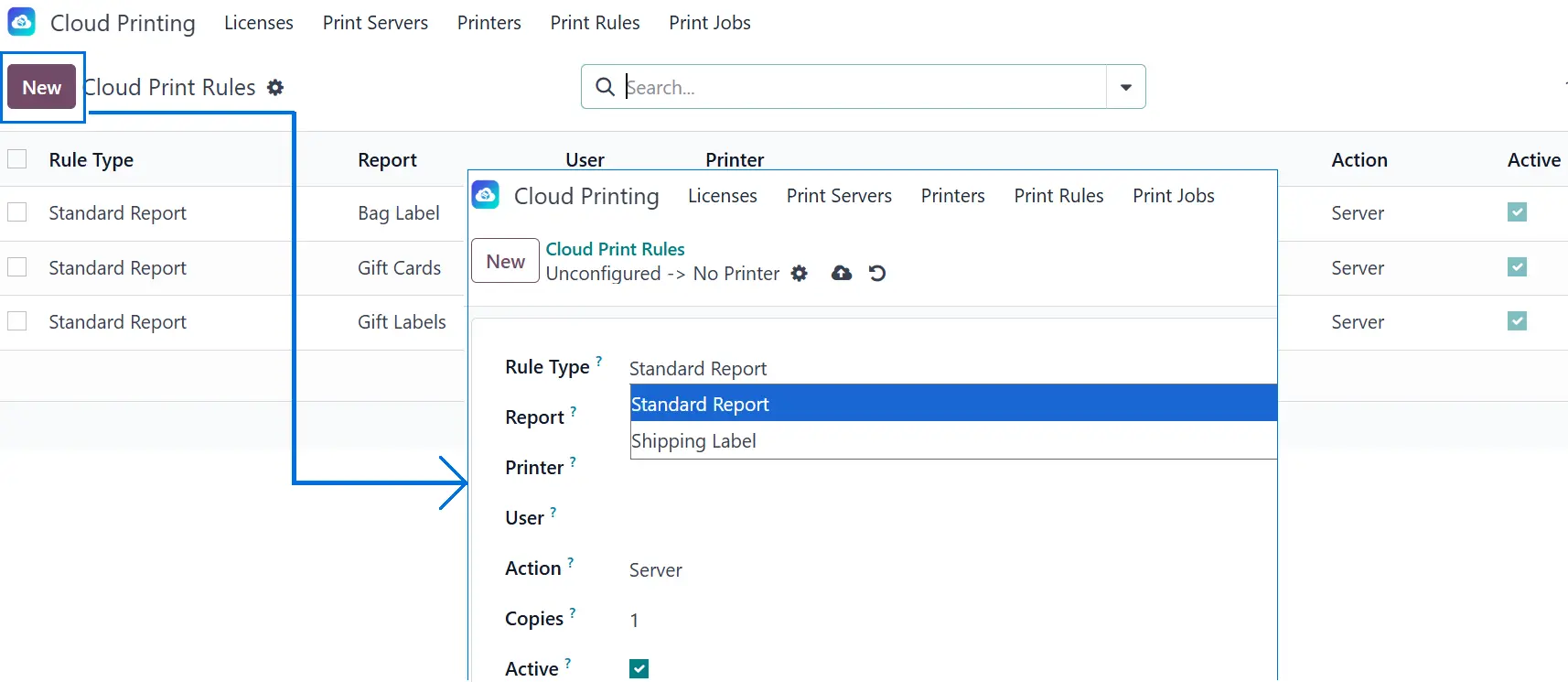
Configure Rules
Set rules in Odoo backend.
5
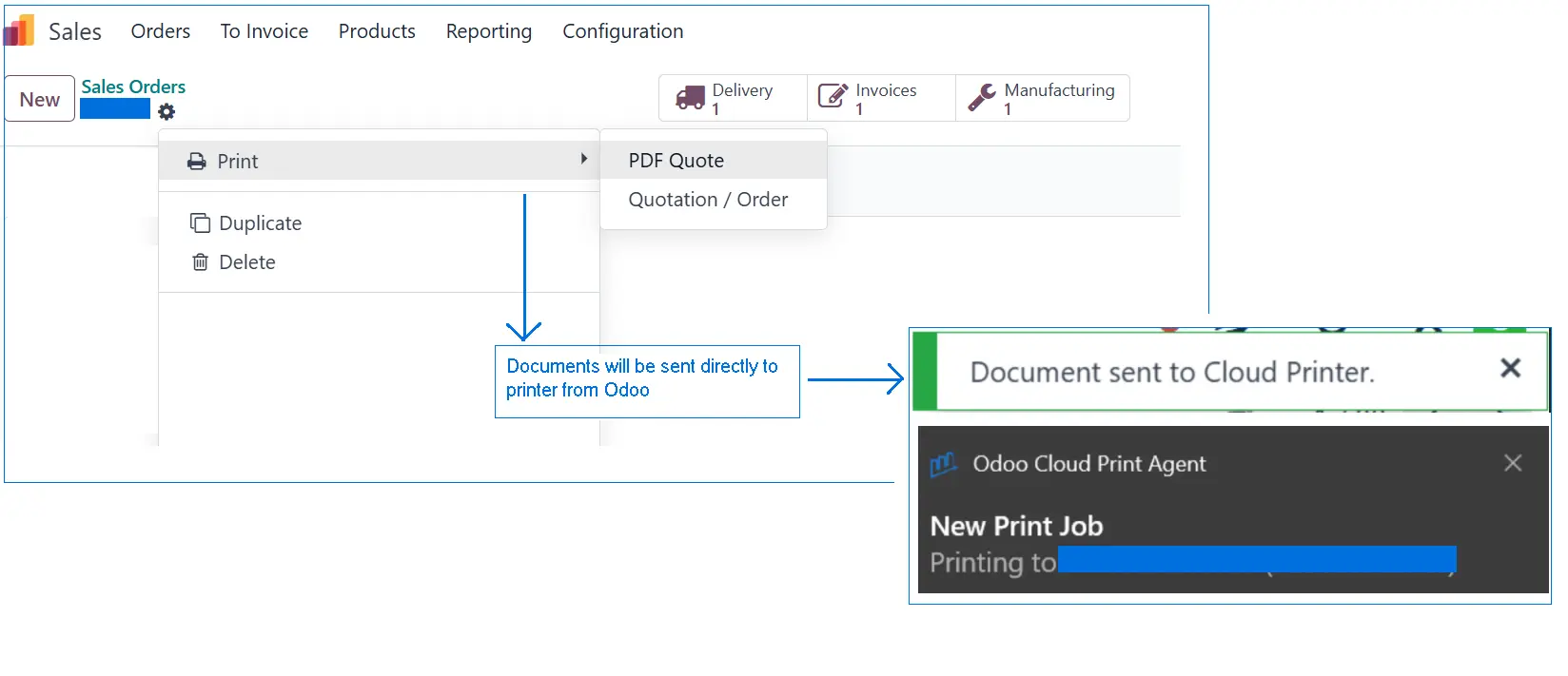
Print Instantly
Any user clicks Print → document prints physically.
Start Printing Smarter Today
Direct printing sends Odoo documents straight to your printer without showing a print dialog or saving PDF files. Cloud Print enables direct printing for all Odoo reports and documents.
Cloud Print intercepts Odoo print requests and routes them directly to your configured printers. One click in Odoo = document prints instantly. No dialogs.
Yes. Cloud Print supports direct printing from Odoo mobile and web apps. Your mobile team can print shipping labels directly from the field.
No, you do not need to manually run the Printing Agent after restarting your system. The agent starts automatically in the background.
However, it may take a couple of minutes to fully initialize, depending on your system’s performance. During this time, the agent is starting up and reconnecting to required services.
If it doesn’t become available after a few minutes, you can try restarting the agent manually.